 CiNotes
Three ways to add notes
| Method | Good for | The catch |
|---|---|---|
| Type on the calculator | A formula or two | Slow, no search, miserable for anything long |
| Convert a text file | Plain text you’ve already formatted | Needs a desktop converter and a separate viewer program |
| Use CiNotes | PDFs, question banks, study guides, pasted notes | PDFs cost money; files arrive by email |
1. Type notes directly
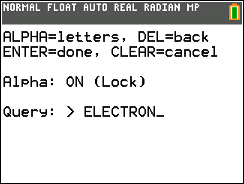
You can make a TI-BASIC program and type text into it one character at a time. For a few lines, that’s fine. For a unit’s worth of notes, it’s hours of pressing ALPHA. The keypad was built for numbers, and the result can’t be searched.
2. Convert a plain-text file
Programs like Notes CE come with a desktop converter that turns a .txt file into calculator data. You format the text yourself, run the converter, and send both the viewer program and the converted file to the calculator. For short, clean text, it’s a solid free option.
More on getting text from a computer onto the calculator
3. Convert a PDF or pasted text with CiNotes
CiNotes does the organizing for you. Upload a PDF, or paste short text straight into the page, and you get files built for the TI-84 Plus CE’s small screen, plus a viewer that can search them.
Doing it by hand
- Reformat every section yourself
- Run a converter on your computer
- Scroll to find anything
- Gets painful past a few pages
With CiNotes
- Upload a PDF or paste text
- Search every note at once
- Matches highlighted, one keypress to the next
- Picks up where you stopped
- Upload your material
- Get the files by email
- Send them over USB
- Browse or search

How to transfer notes from your computer
- Install the free TI Connect CE app on your computer.
- Connect the TI-84 Plus CE with its USB cable.
- Open Calculator Explorer in TI Connect CE.
- Drag all of the calculator files into the calculator window.
- Open the notes program on the calculator. For CiNotes, your delivery email names the program to open.
Calculators on OS 5.5 or newer need a one-time setup step before programs like CiNotes can open. OS 5.8.5 uses a newer version of it. The setup guide has the exact keypresses, plus fixes for the errors people actually run into.
Your CiNotes library survives a normal RAM clear.
The program, your notes, the search index, and your saved place all live in Archive memory, which a RAM clear doesn’t touch. Clear the RAM and your notes are right where you left them.
Before you start: which calculator and OS do you have?
Which method works depends on your model and its operating system (OS). To check, press 2ND + to open MEMORY, then 1 for About. The version is the number under the calculator’s name.
| Your calculator | TI-Basic and Python notes | Notes apps (CiNotes, Text Editor CE, PLEXNOTE) |
|---|---|---|
| TI-84 Plus CE, OS 5.4 or lower | Work | Work as-is |
| TI-84 Plus CE, OS 5.5 to 5.8.4 | Work | Need a free one-time setup (arTIfiCE). The setup guide has the steps. |
| TI-84 Plus CE, OS 5.8.5 | Work | Need a free one-time setup with arTIfiCE v3. The setup guide has the steps. |
| TI-84 Evo | TI-Basic and Python only | Don’t run. The Evo can’t run add-on programs like CiNotes. |
| Black-and-white TI-84 Plus, TI-83 | TI-Basic only | Don’t run. CE programs need the color-screen CE. |
The TI-84 Plus CE Python Edition follows the same rows as the TI-84 Plus CE, and it also has the Python App.
Free methods, step by step
These are the free options, with their real trade-offs. Each one ends with the same transfer step through TI Connect CE, or through the browser for CalcPlex.
Paste text into TI Connect CE’s Program Editor
Works on every TI-84 Plus CE OS with no setup. It’s the quickest free way to get a page of text on the calculator.
- Open TI Connect CE and click the Program Editor workspace.
- Create a new program and give it a short name in capital letters, like
CHEM. - Paste or type your notes, one idea per line.
- Send it with Actions → Send to Calculators.
- On the calculator, press PRGM, move to EDIT, pick the program and read it there.
The catch: you’re reading in the program editor, so a stray keypress can change your text. Running the program just gives a syntax error. There’s no search, and a program in RAM disappears with a RAM clear unless you archive it.
Use a Python file on a TI-84 Plus CE Python
The CE Python Edition can read a .py file in the Python App’s editor, and no setup is needed.
- On your computer, save your notes as a file ending in
.py. Starting each line with#keeps it from erroring if you run it by accident. - Send it with TI Connect CE. It converts the file into a Python AppVar, stored in RAM by default.
- Press PRGM, choose Python App, select the file and open it in the editor.
The catch: the Python App only lists files that are in RAM, so a RAM clear wipes them unless you archive them, and an archived file doesn’t appear in the app until you move it back. The editor has no search either. The regular TI-84 Plus CE (without Python) doesn’t have this option. More in notes on a TI-84 Plus CE Python.
Text Editor CE (Notes CE) and ConvText
MateoConLechuga’s free Text Editor CE, often called Notes CE, is the classic notes viewer. It’s on Cemetech and TI84CalcWiz.
- Save your notes as a plain
.txtfile. - Convert it with the included
ConvText.exe, run from a Windows command prompt asconvtext FILE.txt. That makes a.8xvfile. On a Mac, a community converter such astxt_to_8xvdoes the same job. - Send the
.8xvfile and the viewer program to the calculator with TI Connect CE. - On OS 5.5 or newer, set up arTIfiCE first. The viewer is an assembly program.
The catch: the converter is Windows command-line software, formatting is up to you, and there’s no search across files.
CalcPlex Notes, in the browser
CalcPlex Notes is a free web page that imports PDF, Word and other files, previews them on a calculator screen and sends them over USB from Chrome or Edge. On the TI-84 Plus CE, its PLEXNOTE app shows real fractions and color pictures. PDF text stays editable, while formulas and scanned pages can be kept as pictures. It needs the arTIfiCE setup on OS 5.5 or newer, and also supports the TI-84 Evo through the Evo’s Python App.
On the calculator, CalcPlex lets you find words with ALPHA and jump between headings. If you want a free way to send formatted notes and pictures, it’s worth trying. CiNotes focuses on organizing study guides and question banks, keeping questions, answer choices and answers together, and searching every note in the same library.
Every option compared
| Method | Cost | Reads PDFs | Keyword search | Survives RAM clear | Setup on OS 5.5+ |
|---|---|---|---|---|---|
| Type on the calculator | Free | No | No | Only if archived | None |
| Program Editor paste | Free | No | No | Only if archived | None |
| Python file (CE Python) | Free | No | No | No (must be in RAM to open) | None |
| Text Editor CE | Free | No | No | If archived | arTIfiCE |
| CalcPlex Notes | Free | Editable text; formulas and scans as pictures | Find words in an open note; jump to headings | Not documented | arTIfiCE (CE) |
| CiNotes | Free up to 300 words; PDFs from $3 | Yes, with diagrams as pictures, including question banks with answers | Every note at once, matches highlighted | Yes, everything is archived | arTIfiCE |
Pick by how much you have. A few formulas: type them or paste them into the Program Editor. A page of clean text: any of the free tools. A whole unit, a study guide PDF, or a question bank you’ll need to search: that’s what CiNotes is built for.
Mac, Chromebook and school laptops
- Windows and Mac: TI Connect CE is free from education.ti.com for both. CiNotes runs in any browser, and its download is a ZIP you drag into TI Connect CE.
- Chromebook: TI’s “TI Connect CE App for Chrome OS” works with OS 5.4 or newer, but it’s reported to refuse protected programs, and Google is retiring Chrome apps. Sending from a Chrome tab over WebUSB, like the CiNotes guide’s Send to calculator button (beta), usually works better. School-managed Chromebooks sometimes block USB access. If yours does, transfer from a home or library computer. Chromebook transfers, step by step.
- Phone only: you can upload or paste on a phone, but sending to the calculator needs a computer and USB cable.
If it doesn’t work
ERR:INVALIDwhen opening a notes program: your OS is 5.5 or newer and the one-time setup isn’t done, or the RAM was cleared since (open AsmHook2 from APPS once). See the setup guide or jailbreaking a TI-84 Plus CE on any OS.- “Need LibLoad”: the C libraries file (
clibs.8xg) didn’t make it over. Send it again from your ZIP. If it isn’t there, get it from the CE libraries release on GitHub (github.com/CE-Programming/libraries). - The file sent, but the Python App doesn’t list it: it’s archived. Move it to RAM in 2ND + Mem Management.
- Notes vanished after a RAM clear: they were stored in RAM. Archive them next time, or use a tool that archives everything for you.
The full troubleshooting list covers every CiNotes message.
What kinds of notes work?
Common questions
Which calculators work?
CiNotes runs on the TI-84 Plus CE and TI-84 Plus CE Python Edition. It doesn’t run on the TI-84 Evo, which can’t run add-on programs like CiNotes, or on the black-and-white TI-84 Plus, the TI-83, or the TI-84 Plus C Silver Edition.
Can I put a PDF directly on a TI-84?
No. The calculator can’t open a PDF. It has to be converted into calculator program and data files first. Here’s how PDF conversion works.
Can the notes include answers?
Yes. For questions with an answer key or rubric, keep them in the same PDF as the questions. CiNotes keeps each answer with its question. An answer-key-only file can’t be matched back up.
Do the notes need internet?
No. Once they’re transferred, the program and notes run entirely on the calculator.
Does CiNotes work on the TI-84 Evo?
No. The TI-84 Evo can’t run CiNotes or other add-on programs. For notes on an Evo, use a Python-based tool, such as CalcPlex Notes, which supports it.
How do I put notes on a TI-84 Plus CE Python?
Every method on this page works on the Python Edition. It also has one extra free option: send a .py file and read it in the Python App’s editor. See the steps, or the full TI-84 Plus CE Python notes guide.
Can I put notes on my TI-84 from a Mac or a Chromebook?
Yes. TI Connect CE runs on Mac and Windows, and TI has a Chrome OS app for sending files to a TI-84 Plus CE. Details here.
What about NoteFolio?
NoteFolio was a TI app for the black-and-white TI-83 Plus and TI-84 Plus. There’s no TI-84 Plus CE version, so CE owners use one of the methods above.
Done typing one letter at a time?
Paste up to 300 words free, or upload a PDF starting at $3.
Make my calculator notes