Setup & usage guide
Do these steps in order and you'll be reading your notes on your calculator in about ten minutes. Step 1 tells you whether you can skip Step 2.
Check your calculator's OS version
Do this first. It takes about 15 seconds and it decides whether you need the one-time setup in Step 2.
The OS version is the number just under the calculator's name — something like
5.8.4. Press CLEAR to leave.
| Your OS version | What you need to do |
|---|---|
| 5.4.x or lower | Nothing extra. Skip Step 2 and go to Step 3. |
| 5.5.0 or newer | Do Step 2 once. It's free and takes about two minutes. |
One-time compatibility setup (only if Step 1 said so)
On OS 5.5 or newer, your calculator needs a free tool called arTIfiCE before it can open CiNotes. People sometimes call this “jailbreaking,” but it doesn't modify your OS. Delete arTIfiCE whenever you want to remove it.
Do this once
- On your computer, open yvantt.github.io/arTIfiCE and download the current version. The file looks like
arTIfiCE_v2.1.8xp. - Plug the calculator into your computer with its USB charging cable and open TI Connect CE (see Step 4 if you don't have it yet).
- Drag
arTIfiCE_v2.1.8xpinto the Calculator Explorer window to send it over. - On the calculator, press PRGM. If it asks, choose TI-Basic. Select the first program in the list — it's named
A— and press ENTER. That putsprgmAon the home screen; press ENTER again to run it. - arTIfiCE opens a small program launcher. Your CiNotes program will appear in that list once you've transferred it in Step 4. Press MODE to quit arTIfiCE.
prgmA and choose CiNotes whenever you want to read your notes.What you received
Your delivery email contains:
- One ZIP download with everything your calculator needs
- A separate Your notes.html preview to open on your computer, with converted text and a PDF reading report
- Your Reference Code — keep this email in case you need help later
Unzip the download. Do not rename, remove, or pick through the files. You will send everything inside to the calculator in Step 4.
Transfer to your calculator
You need TI Connect CE, TI's free software for moving files between a computer and the calculator.
- Download TI Connect CE from education.ti.com and open it.
- Connect the calculator to your computer with its USB charging cable.
- Click the Calculator Explorer tab (the icon with the stacked squares).
- Select every file from your unzipped download.
- Drag them all into the calculator window and wait for the transfer to finish.
Launch the program
If you skipped Step 2 (OS 5.4.x or lower):
If you did Step 2 (OS 5.5.0 or newer):
A, press ENTER twice to start arTIfiCE, then choose the program named in your delivery email from the list it shows.
If your order includes both multiple-choice and free-response content, they're split into two separate programs. They work identically.
New collections have their own program names, starting with PM or PF. Older downloads use NOTESMC or NOTESFRQ. Your delivery email identifies exactly which programs to open.
Nothing happening, or an error instead of the CiNotes screen? Jump to Troubleshooting — it lists the exact messages and what each one means.
Finish first-time setup
If you entered your Calculator ID while ordering: you are already done with this step. Open CiNotes and your notes should appear.
If you left the Calculator ID blank: CiNotes shows the number you need. Finish setup now—before you rely on it in class:
- Write down the Calculator ID on the screen.
- Go to cinotes.com/setup and enter it, your Reference Code (in your order email), and the email you ordered with.
- Your final setup file downloads immediately for free. We email you a copy too.
- Send that file to your calculator exactly the way you sent the rest in Step 4, then open the program again.
Stuck? Email support@cinotes.com with your Reference Code and Calculator ID and we'll sort it out.
Main menu
After your notes load, you'll see the main menu:
Try the interactive calculator preview to practice these controls in your browser.
| Key | What it does |
|---|---|
| 1 | Search for a keyword across all notes |
| 2 | Browse note titles; use the arrows to select one and ENTER to open it |
| 3 | Pick up exactly where you left off last time |
| 4 | Jump directly to a note by its number |
| CLEAR | Save your spot and exit to the calculator home screen |
Searching for a topic
Press 1 from the main menu to search. You'll see the text input screen:
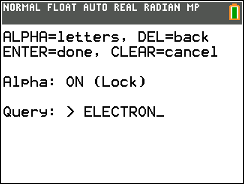
How to type on a calculator
The calculator keys normally type numbers. To type letters:
| Key | What it does |
|---|---|
| ALPHA | Type one letter (the green label above each key), then back to numbers |
| 2ND + ALPHA | Lock alpha mode — every key types its letter until you press ALPHA again |
| 0 (in alpha mode) | Type a space |
| DEL | Backspace |
| ENTER | Submit your search |
| CLEAR | Cancel and go back to the menu |
After pressing ENTER, matching notes appear in the viewer with your search term highlighted.
If no notes match, CiNotes keeps your query. Press 1 to edit it, 2 to browse titles, 3 to jump to a note number, or CLEAR to return to the menu.
Reading notes
The note viewer shows one note at a time with a scrollbar on the right. If you searched for a keyword, it'll be highlighted automatically.
.png)
.png)
| Key | What it does |
|---|---|
| UP / DOWN | Scroll through the current note line by line |
| RIGHT | Jump to the next note |
| LEFT | Go back to the previous note |
| ENTER | Jump to the next keyword match within this note (search mode only) |
| CLEAR | Return to the main menu (your position is saved) |
The status bar at the bottom tells you:
- Match 1/3 — which keyword match you're on within this note
- Note 5/18 — which note out of the total search results
Exiting safely
There are two ways to leave the program:
| Key | Where | What happens |
|---|---|---|
| CLEAR | Main menu | Saves your position and exits to the TI-OS home screen |
| Y= | Anywhere | Instant exit from any screen — saves your position first |
Next time you open the program, press 3 on the main menu to resume exactly where you stopped.
Your complete CiNotes library survives a normal RAM clear.
The NOTES program, note data, search index, calculator pairing, and saved reading/search position are all archived. Clearing RAM does not delete them. On OS 5.5 or newer, if the separate arTIfiCE launcher was removed, restore that launcher and your existing CiNotes files will be waiting exactly where you left them.
Troubleshooting
Find the message your calculator actually shows. Each one has exactly one cause.
“ERR:INVALID” when you try to run the program
The screen shows ERR:INVALID with the options 1:Quit and 2:Goto, and CiNotes never opens.
Cause: your OS is 5.5 or newer and the compatibility setup hasn't been done. This is the calculator refusing to run any C program — it isn't a problem with your notes.
Fix: do Step 1 and Step 2, then launch CiNotes from the arTIfiCE list instead of straight from the PRGM menu.
“Need LibLoad”
The screen shows:
Need LibLoad
http://tiny.cc/clibs
Cause: clibs.8xg never made it onto the calculator.
Fix: send clibs.8xg from your zip with TI Connect CE (Step 4). If it isn't in your zip, get it from github.com/CE-Programming/libraries/releases/latest. That tiny.cc address on the screen is printed by the calculator libraries themselves and points to the same place.
“ERROR: Missing Library” / “Library Name: FILEIOC”
An error screen naming a specific library, such as FILEIOC or KEYPADC.
Cause: clibs.8xg was sent but only part of it landed — most often on ChromeOS, where TI Connect CE doesn't always unpack group files.
Fix: download clibs_separately_in_zip.zip from the CE libraries releases page, unzip it, and send every file inside it individually.
“ERROR: MCQs not found!” or “ERROR: FRQs not found!”
CiNotes starts, prints Loading MCQs..., and then shows:
ERROR: MCQs not found!
Transfer MCDATA.8xv
(and MCDAT1, MCDAT2, etc.)
to calculator.
The free-response program shows the same thing for FRQ0.8xv, FRQ1, FRQ2, and so on.
Cause: the program transferred but its .8xv data files didn't — or only some of them did.
Fix: go back to Step 4 and send every file from the zip, including all the .8xv files. If you deleted files to free up memory, re-send them. Archiving them on the calculator is fine; deleting them is not.
“Bloom: missing” or “Bloom: mismatch” at the bottom of the menu
Cause: the search index file (MCIDX.8xv / FRQIDX.8xv) is missing, or it belongs to a different order than the notes on the calculator.
Effect: everything still works — search just has to scan every note, so it's slower.
Fix: re-send every file from that order's ZIP so its index and notes match. New collections can coexist on one calculator; keep each collection's filenames unchanged.
The program shows a Calculator ID instead of your notes
Cause: the setup file for this collection and calculator is missing or doesn't match. New collections have a setup filename beginning with L; older downloads use CILIC.8xv.
Fix: re-send the setup file from this order's ZIP or activation email. If you ordered without a Calculator ID, or the files came from a friend, get your own file at cinotes.com/setup using the Reference Code from your email and the Calculator ID on the screen. Keep the downloaded filename unchanged.
It worked before and now it asks to be activated again
Cause: this collection's setup file was deleted or replaced. A RAM clear on its own shouldn't do this — the file lives in archive memory — but deleting it by hand to free space will.
Fix: re-send the setup file from this order's ZIP or activation email. Lost both? Re-send it free at cinotes.com/setup using this order's Reference Code — you won't be charged again. If a RAM clear also removed arTIfiCE, re-send arTIfiCE_v2.1.8xp and run prgmA again.
Still stuck
Email support@cinotes.com with your OS version (Step 1), the exact message on the screen, and the Reference Code and Calculator ID if you can see them. That's everything we need to answer in one reply.
Quick reference
All controls at a glance.
Main menu
| 1 | Search |
| 2 | Browse titles and open a note |
| 3 | Resume previous session |
| 4 | Jump to a note number |
| CLEAR | Save & exit |
Text input
| ALPHA | Type one letter |
| 2ND + ALPHA | Toggle alpha lock (continuous letters) |
| DEL | Backspace |
| LEFT / RIGHT | Move cursor |
| ENTER | Submit |
| CLEAR | Cancel |
Note viewer
| UP / DOWN | Scroll within note |
| LEFT / RIGHT | Previous / next note |
| ENTER | Jump to next keyword match |
| CLEAR | Back to menu |
Anywhere
| Y= | Instant exit (saves position) |
Useful screens
| 2ND + 1 | About — shows your OS version |
| PRGM | Program list (CiNotes, and arTIfiCE's A) |